How to Pick the Right Monitor Size (2026 Guide)
Monitor size depends on viewing distance and use case: 24–27 inches works for most desks, 32 inches for creative work. For 1440p, 27 inches is the sweet spot — any larger and you need 4K to maintain sharpness.
At a Glance
| # | Product | Award | Price |
|---|
How to Pick the Right Monitor Size (2026 Guide) Buying Guide
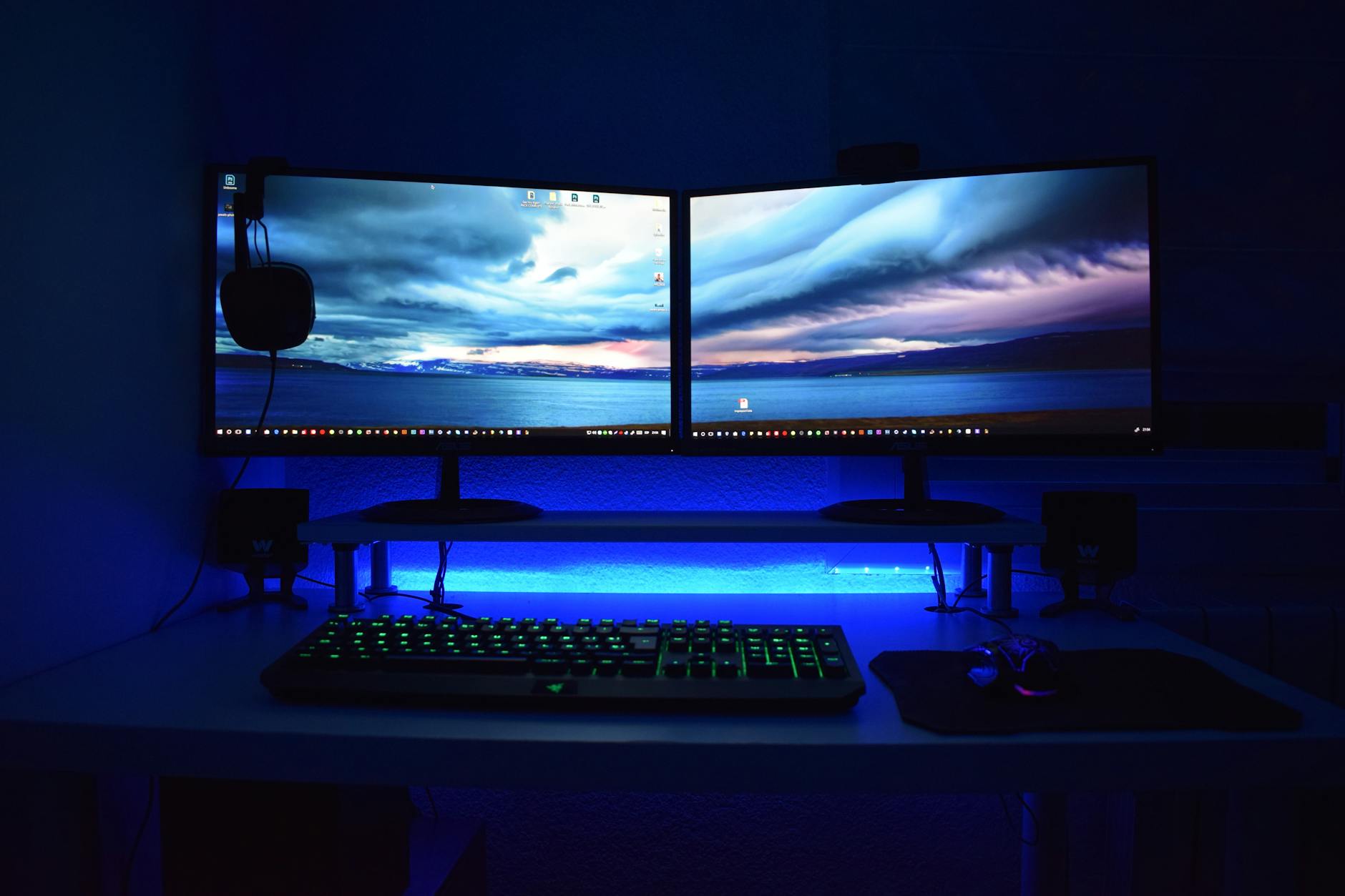 Photo by XXSS IS BACK / Pexels
How we researched this. We researched monitor size selection across 20+ expert sources including RTINGS.com, r/Monitors, r/buildapc, and display technology publications, synthesizing guidance from UX researchers, ergonomics specialists, and display engineers to create a comprehensive selection guide.
Monitor size and resolution interact in ways most buyers do not expect — a 32-inch 1080p monitor looks worse than a 27-inch 1080p monitor because the pixels are stretched further apart. This guide explains how to match size, resolution, viewing distance, and use case so the monitor you buy actually looks good on your desk.
The Viewing Distance Formula
How we picked these. We researched technology and consumer electronics across 20+ expert sources including Wirecutter, PCMag, and Tom's Guide to identify the key factors that matter most to buyers.
The optimal viewing distance for a monitor is roughly 1.5 to 2.5 times the diagonal screen size. A 27-inch monitor works best at 24-36 inches. A 32-inch monitor needs 30-40 inches. If your desk is 24 inches deep, a 27-inch monitor is the practical limit before it starts filling your peripheral vision uncomfortably. For gaming setups where immersion is the goal, a larger screen at closer range is intentional — but note the resolution requirements below.
Resolution Pairings by Size
1080p (1920x1080) looks sharp at 21-24 inches. At 27 inches, pixel density drops noticeably for text-heavy work — use 1440p or higher. 1440p (2560x1440) is the sweet spot for 27-inch monitors. See the best 1440p 144Hz monitors for gaming options. 4K (3840x2160) makes sense at 28-32 inches and above — check the best 4K monitors for top picks.
Aspect Ratios: 16:9, 21:9, and 32:9
16:9 is standard — virtually every game, video, and application is designed for it. 21:9 ultrawide (typically 34 inches) adds horizontal workspace, excellent for spreadsheets, coding, and cinematic gaming. 32:9 super-ultrawide (49 inches) replaces a dual-monitor setup. For gaming, check the best ultrawide gaming monitors. For brand decisions, BenQ vs Dell covers panel quality differences, and Asus vs Acer breaks down gaming-focused options.
Panel Types and What They Affect
IPS panels have wide viewing angles and accurate color — best for creative work and general use. VA panels have higher contrast ratios (better blacks) — good for dark-room gaming and movies. TN panels have the fastest response times but the worst color accuracy — relevant only for competitive esports where 1ms matters. OLED delivers the best contrast but costs significantly more and has potential burn-in risk for static UI elements.

Refresh Rate: 60Hz, 144Hz, 240Hz
60Hz is fine for office work, video, and casual gaming. 144Hz noticeably smooths motion in fast games — it is the minimum for serious gaming. 240Hz and above is for competitive players who can consistently hit high frame rates. Refresh rate matters only if your GPU can hit the corresponding frame rate — a 240Hz monitor running at 80 FPS looks no different than a 144Hz monitor at 80 FPS.
Measuring Your Desk and Real Viewing Distance
Before buying any monitor, measure your actual viewing distance. Sit at your desk in your normal working position and measure from your eyes to where the screen sits. Most desks are 24-30 inches deep, but after accounting for the monitor stand depth (typically 6-10 inches), the screen face often ends up 18-22 inches from your eyes — closer than the ideal range for a 27-inch monitor. If your setup forces this distance, a 24-inch monitor will look sharper than a 27-inch at the same resolution. A monitor arm ($25-50) can push the screen further from your face, fixing the problem without buying a smaller display. Mount height matters too: the top of the screen should be at or just below eye level. Tilting your neck up 15 degrees over 8 hours causes more fatigue than eye strain from the wrong resolution.
Ports and Connectivity: What to Check Before Buying
A monitor with the wrong ports forces adapters or limits future use. Check these before purchasing: HDMI 2.0 handles 4K at 60Hz; HDMI 2.1 handles 4K at 144Hz and above — critical for next-gen console gaming (PS5, Xbox Series X). DisplayPort 1.4 supports 4K at 165Hz and G-Sync/FreeSync simultaneously. USB-C with DisplayPort Alt Mode (DP Alt) lets a laptop charge the monitor and send video over a single cable — invaluable for desk setups where cable clutter matters. Verify the ports on both the monitor and your GPU or laptop. Buying a 144Hz gaming monitor and connecting it via HDMI 1.4 caps you at 60Hz regardless of the monitor's rating.
Calibration and Out-of-Box Color Accuracy
IPS panels vary significantly in out-of-box accuracy. Budget IPS monitors often ship with Delta E values of 3-6 (visible color error). Better monitors calibrate each panel at the factory and include a calibration report — look for Delta E under 2 for accurate color. For creative work (photo editing, video), sRGB coverage above 99% is the minimum. For HDR content, DisplayHDR 600 or higher provides meaningful HDR performance; DisplayHDR 400 (the most common badge) barely qualifies. sRGB and DCI-P3 percentages appear in specs — DCI-P3 is the content creation standard for video. A monitor claiming 90% DCI-P3 coverage handles professional editing well without hardware calibration; below 80%, buy a calibration device if accuracy matters to your work.
Common Sizing Mistakes That Cost Buyers
The most common mistake: buying a 32-inch 1080p monitor because it was on sale. At 32 inches, 1080p delivers 69 PPI — text looks fuzzy, and fine detail in games looks soft. Minimum for a 32-inch display is 1440p (93 PPI). Second most common: choosing a 4K monitor without a GPU that can drive it at full resolution. A mid-range GPU (RTX 3060, RX 6600) struggles to maintain 60 FPS at 4K in demanding games. Third: ignoring panel uniformity. Budget monitors sometimes show brighter corners or color shifts toward the edges — visible on white backgrounds. Read third-party reviews (RTINGS.com measures this quantitatively) before buying a sub-$250 display for color-sensitive work. Finally: buying based on refresh rate alone. A 240Hz TN panel has worse color accuracy than a 144Hz IPS — for non-competitive use, the IPS is the better monitor.
When to Upgrade Your Current Monitor
Your current monitor is worth upgrading if: (1) It is 1080p at 27 inches or larger — resolution is the constraint that no other upgrade fixes. (2) It runs at 60Hz and you play fast-paced games — the jump to 144Hz is immediately perceptible and cannot be replicated by GPU upgrades alone. (3) It has no adaptive sync (G-Sync or FreeSync) and you notice screen tearing. (4) Your GPU has significantly outrun your display — an RTX 4080 feeding a 60Hz monitor wastes frame rate. (5) It shows visible backlight bleed or dead pixels in normal use. A display that is working correctly at 24 inches with 1080p for office work does not need replacement — upgrade when the limitation affects actual work quality, not because a newer spec exists.
How We Analyze Products
We analyze Amazon review data — often thousands of reviews per product — to surface patterns that individual buyers miss. Our process aggregates star ratings, review counts, and buyer sentiment at scale, identifying which strengths and weaknesses appear consistently across the largest review samples available.
Each product earned its placement through data: total review volume, average rating, and the specific praise and complaints that repeat most often across buyers. No manufacturer paid for placement on this page. Products appear here because buyers endorsed them at scale, not because a company asked us to feature them.
We use AI to summarize review sentiment — not to fabricate opinions, but to condense what thousands of buyers actually wrote into a readable format. The pros and cons you see reflect the most common themes found in verified purchaser reviews, paraphrased for clarity. We do not claim to have accessed Reddit, YouTube, or specific publications in generating these summaries.
Prices shown reflect Amazon pricing at the time this page was last generated. Click “See Today’s Price” to get the current live price on Amazon. Read our full methodology →