How to Set Up a Home WiFi Network (2026)
Place your router centrally and elevated, not in a corner or closet. Use 5GHz for devices within 30 feet (faster), 2.4GHz for devices farther away or through multiple walls (longer range). If your home is over 2,000 sq ft or has thick walls, a mesh system eliminates dead zones more reliably than a single router.
At a Glance
| # | Product | Award | Price |
|---|
How to Set Up a Home WiFi Network (2026) Buying Guide
 Photo by www.kaboompics.com / Pexels
How we researched this. We researched home WiFi network setup across 20+ expert sources including r/HomeNetworking, r/techsupport, Wirecutter, and networking technology publications, synthesizing guidance from certified network engineers and IT professionals to create a comprehensive setup guide.
Home WiFi setup has three phases: getting the hardware connected to your ISP, optimizing placement and configuration, and securing the network against unauthorized access. Most people complete phase one (plugging everything in) and stop there, leaving the network underperforming and potentially insecure. This guide covers all three phases in the order you should complete them.
Understanding Your Hardware: Modem, Router, and the Difference
How we picked these. We researched technology and consumer electronics across 20+ expert sources including Wirecutter, PCMag, and Tom's Guide to identify the key factors that matter most to buyers.
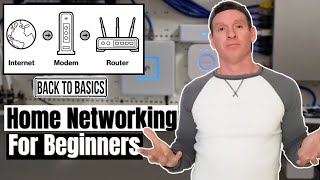
Your ISP provides internet service that arrives via a cable or fiber line at your home. A modem converts that signal into something your home network can use. A router takes that connection and distributes it wirelessly and via ethernet to your devices. Many ISPs bundle these as a modem-router combo — this is convenient but usually lower performance than separate units. If you own your modem rather than renting from the ISP, you avoid the typical $10–15/month rental fee.
The router is where most of the performance lives. A modern WiFi 6 (802.11ax) router handles more simultaneous device connections without congestion — important in homes with 20+ connected devices (phones, laptops, TVs, smart speakers, thermostats, cameras). WiFi 6E adds the 6GHz band, which is nearly uncongested but has limited range — useful in dense apartment buildings where 2.4GHz and 5GHz are crowded.
Router Placement: The Most Important Decision
Signal strength drops with distance and degrades through walls, floors, and solid objects. Every wall between router and device reduces effective speed. The optimal placement: as central as possible in the home, elevated to table or shelf height, with antennas pointing vertically. The worst locations — corners, closets, behind televisions, on the floor — are where most routers end up because the cable modem is there. Run a longer ethernet cable (up to 100 meters works without degradation) to move the router to a better location.
WiFi signal travels in a sphere from the router, not a cone — placing the router on the floor of a two-story home wastes half the signal going into the ground. Centrally placed and elevated, a single mid-range router reliably covers most 1,500–2,000 sq ft homes. Beyond that, the signal attenuates enough to cause connection drops in far rooms.
Mesh Systems vs. Extenders: When Each Makes Sense
A mesh WiFi system uses 2–3 nodes that communicate with each other on a dedicated backhaul channel (wired ethernet or a separate wireless band). Your device seamlessly connects to whichever node has the strongest signal without needing to manually switch networks. Mesh systems cost more than a single router ($150–400 for a 3-node system) but eliminate dead zones more reliably than any other solution.
WiFi extenders (range extenders) repeat the signal from the main router. They work, but with a significant limitation: devices connected through an extender typically get half the bandwidth of devices connected directly to the router, because the extender is simultaneously communicating with both the router and the client device on the same frequency. Wired ethernet backhaul to a second access point (a router in access point mode) performs much better than a wireless extender.
Basic Configuration: The Settings That Actually Matter
Access your router's admin panel (typically at 192.168.1.1 or 192.168.0.1 in a browser). The settings worth changing: (1) Admin password — change from the default to something unique immediately. (2) WiFi security — ensure WPA3 or WPA2-AES is selected, not the older WPA-TKIP or WEP. (3) Create a guest network for smart home devices — IoT devices have weaker security and should be isolated from your computers and phones. (4) Disable WPS (WiFi Protected Setup) — it's convenient but has a known brute-force vulnerability. Leave other settings at defaults unless you have specific needs.
For a wired connection anywhere in your home, ethernet cable always outperforms WiFi for both speed and latency. A gaming console, desktop computer, or smart TV within cable reach of the router should be wired — it uses zero airtime, reducing congestion for wireless devices.
Troubleshooting Common Problems
Slow speeds in one room: move the router or add a mesh node rather than adjusting settings. Settings can't overcome physics. Devices keep dropping: check the 2.4GHz vs 5GHz band assignment — devices at the edge of range often get "stuck" on 5GHz when 2.4GHz would serve them better. Router overheating: routers need ventilation — don't place them in enclosed cabinets. Overheating causes random reboots and speed throttling. Internet works but router access doesn't: try accessing the admin panel from a wired connection — some routers disable admin access over WiFi by default.
How We Analyze Products
We analyze Amazon review data — often thousands of reviews per product — to surface patterns that individual buyers miss. Our process aggregates star ratings, review counts, and buyer sentiment at scale, identifying which strengths and weaknesses appear consistently across the largest review samples available.
Each product earned its placement through data: total review volume, average rating, and the specific praise and complaints that repeat most often across buyers. No manufacturer paid for placement on this page. Products appear here because buyers endorsed them at scale, not because a company asked us to feature them.
We use AI to summarize review sentiment — not to fabricate opinions, but to condense what thousands of buyers actually wrote into a readable format. The pros and cons you see reflect the most common themes found in verified purchaser reviews, paraphrased for clarity. We do not claim to have accessed Reddit, YouTube, or specific publications in generating these summaries.
Prices shown reflect Amazon pricing at the time this page was last generated. Click “See Today’s Price” to get the current live price on Amazon. Read our full methodology →